
Microsoft Word is one of the most widely used word processing tools in the world. Whether you are writing reports, school projects, or professional documents, it’s common to face a small but frustrating problem: extra pages that just won’t go away.
If you’ve ever opened your Word document only to find an unwanted blank page at the end or in the middle, you know how annoying it can be. But don’t worry! Deleting a page in Word is easier than you think.
In this guide, we’ll walk you through step-by-step instructions for Windows, Mac, and Word Online, so you can clean up your document effortlessly.
Why Extra Pages Appear in Word
Before we jump into deleting pages, it’s helpful to understand why they appear in the first place. Knowing the cause can help you prevent extra pages in the future and make your documents look cleaner. One common reason is extra paragraph marks. Word treats every paragraph as a separate block of text, so even if a page looks empty, pressing Enter multiple times can create invisible paragraph marks that push content onto a new page. Similarly, manual page breaks can unintentionally move text to the next page, leaving unwanted blank spaces.
Another reason extra pages appear is section breaks, which are often used when a document has different headers, footers, or page layouts. These breaks can inadvertently create blank pages that are harder to spot. Additionally, tables at the end of a document can also cause issues. Sometimes the table’s formatting pushes a blank line or an entire page beyond the table, creating extra space that appears as an unnecessary page. Understanding these causes makes it easier to fix and prevent extra pages in Word.
How to Delete a Page in Word on Windows
Deleting a page in Word for Windows is straightforward. Here’s how to do it:
Method 1: Using the Navigation Pane
-
Open your Word document.
-
Go to View > Navigation Pane.
-
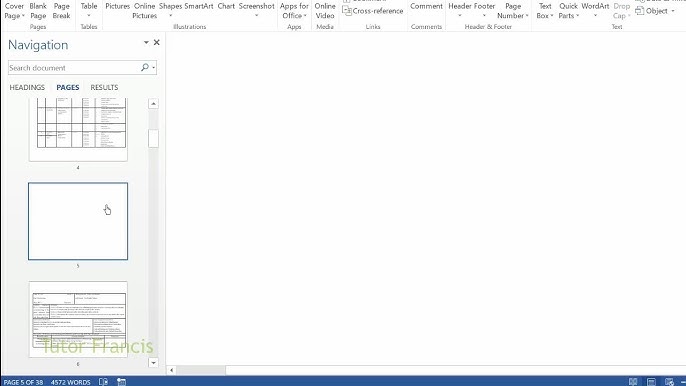
In the Navigation Pane, click on Pages. You’ll see a thumbnail of every page in your document.
-
Click the page you want to delete.
-
Press Backspace or Delete on your keyboard.
This method is excellent if you want to delete a specific page in a long document without scrolling endlessly.
Method 2: Highlight and Delete
-
Place your cursor at the start of the page you want to remove.
-
Hold down the mouse button and drag to the end of the page (or press Ctrl + Shift + End to select all content to the end of the page).
-
Press Delete.
Method 3: Remove a Blank Page
-
Turn on Show/Hide ¶ (Home > Paragraph > ¶). This shows paragraph marks and page breaks.
-
Select the extra paragraph marks or page breaks.
-
Press Delete.
How to Delete a Page in Word on Mac
Deleting a page in Word for Mac is slightly different, but just as simple.
Method 1: Use the Navigation Pane
-
Open your document.
-
Click View > Navigation Pane.
-
Select the page you want to delete.
-
Press Delete.
Method 2: Highlight and Remove
-
Click at the beginning of the page you want to delete.
-
Drag your cursor to select all the content on that page.
-
Press Delete or fn + Delete (depending on your keyboard).
Method 3: Remove Blank Pages
-
Enable Show Formatting Marks (Word > Preferences > View > Show All Formatting Marks).
-
Delete extra paragraph marks or page breaks manually.
Tip: If the blank page is stubborn, check if there’s a section break at the end of your document. Deleting it usually removes the page.
How to Delete a Page in Word Online
Word Online is convenient for quick edits, but some features work differently from the desktop app. Here’s how to delete a page:
-
Open your document in Word Online.
-
Place your cursor at the beginning of the page you want to remove.
-
Click and drag to highlight all the content on that page.
-
Press Delete on your keyboard.
Unfortunately, Word Online does not have a navigation pane like the desktop versions. Highlighting the content manually is usually the fastest method.
How to Delete a Page Break
Sometimes, the page you want to delete exists because of a page break. Here’s how to remove it on any platform:
-
Turn on Show/Hide ¶ to see hidden formatting marks.
-
Find the page break line labeled “Page Break”.
-
Click before the page break and press Delete.
How to Delete Section Breaks
Section breaks can create new pages with different formatting. To delete them:
-
Enable Show/Hide ¶.
-
Locate the Section Break (Next Page/Continuous/Even Page/Odd Page).
-
Select it and press Delete.
Be careful: Deleting a section break may affect the formatting of headers, footers, or columns in your document.
Keyboard Shortcuts to Delete Pages Quickly
If you want speed and efficiency, try these keyboard shortcuts:
| Platform | Shortcut |
|---|---|
| Windows | Ctrl + G (Go To), type \page, Enter, then Delete |
| Mac | Command + Option + G (Go To), type \page, Enter, then Delete |
This is particularly useful for long documents where scrolling is cumbersome.
Tips to Avoid Extra Pages in Word
-
Use Paragraph Marks: Turn on paragraph marks to see hidden spaces.
-
Avoid Multiple Enters: Don’t hit Enter multiple times to push text onto a new page; use spacing tools instead.
-
Check Page and Section Breaks: Insert them only when necessary.
-
Keep Tables in Check: Make sure tables don’t push blank pages at the end of a document.
COMMENTS